
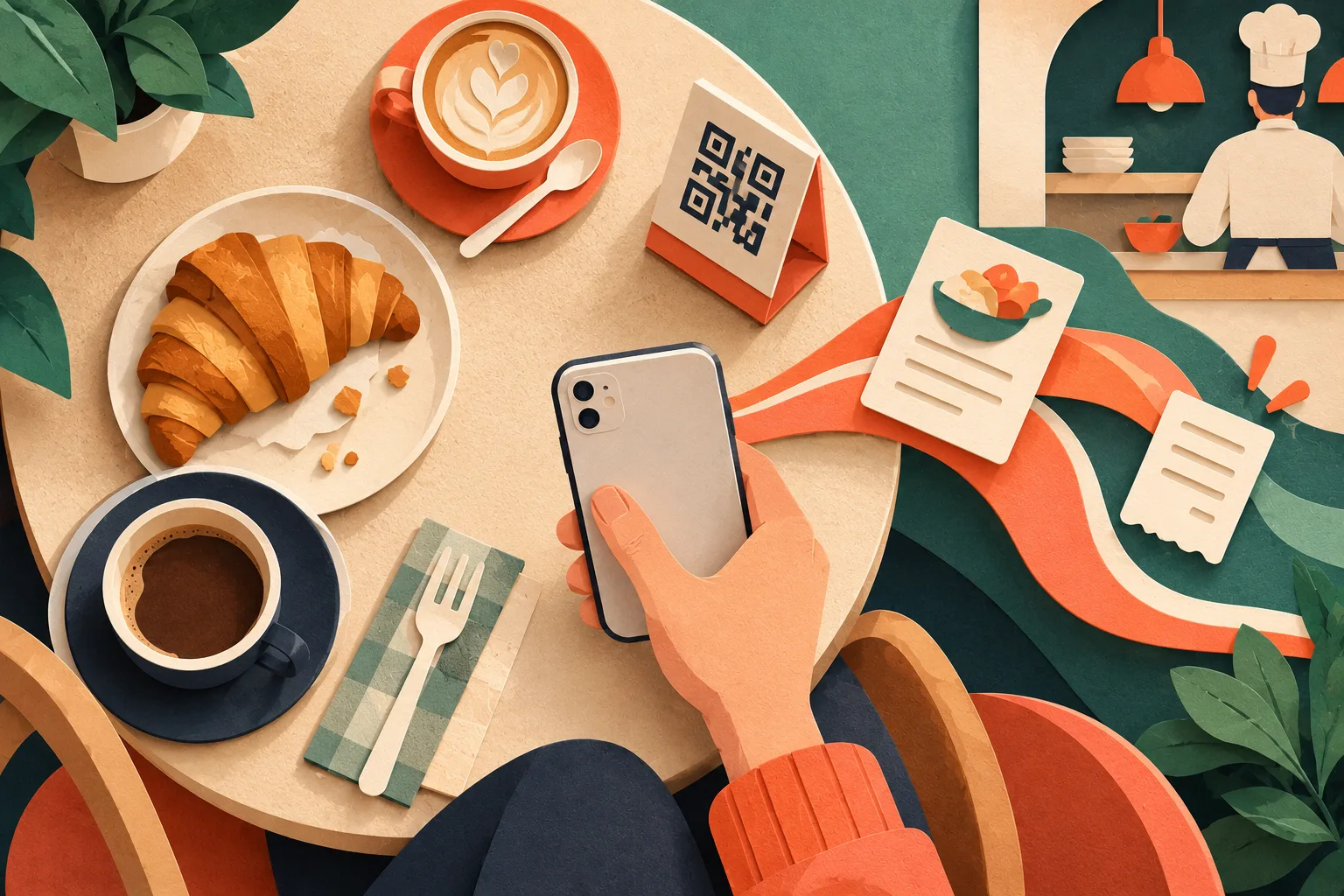
QR code ordering means the guest scans the code on the table with their phone and places the order from the menu themselves. In a well-built system the order doesn't wait on a separate screen: it goes straight to that table's bill on the POS and to the kitchen. The payment side is the part people confuse most: the guest requests the bill from their phone with one tap, and the bill is closed at the POS. At sipnik this flow is handled by sipnik Table, our table ordering system.
In this guide we explain step by step how QR code ordering from the table works, the difference between a QR menu and QR ordering, what "QR payment" actually means, and what cafés, restaurants and other businesses gain from the system.
How does QR code ordering work?
From the guest's point of view, the flow has five steps: scan, browse, send, track, request the bill.
- Scan: The guest scans the card on the table with their phone camera and lands directly on that table's menu.
- Browse: Categories with photos, best sellers, search, sizes and extras. The menu is available in four languages.
- Send: The basket is sent with its options and notes.
- Track: The guest follows the order through received, preparing and ready in a bar at the top of the page. If they allowed notifications, a "your order is ready" alert arrives even when the phone screen is off.
- Request the bill: The guest sees their bill and calls the waiter or requests the bill to the table with one tap.
No app download needed
To order from the table, guests don't need to download an app or sign up. The menu, basket and bill open in the browser with your logo and colors. So you can start taking orders today with the card you put on the table, without introducing your customers to a new app.
Does the order go to the POS or to the waiter?
You decide. In a café without table service, the order goes straight to sipnik POS: when the cashier opens the table, the items are already waiting in the basket; they check the lines labeled "Table QR" and add them to the bill with one tap. In a business with waiters, or at a beach club, the request goes to the waiter's tablet and the waiter confirms it at the table. We cover the waiter side in detail on the waiter ordering system page. In both cases the kitchen ticket and station routing are exactly the same as for a regular order.
Everyone at the table orders on the same bill
When a bill is opened at a table, a 4-digit table code is created; the code also appears on the POS. Friends who arrive later join the same bill with this code and order from their own phones. Everyone sees the table's bill, and their own orders stay at the top with a "Yours" badge. If the table is moved or merged with another table at the POS, the guest's phone moves to the new table too.
QR menu vs. QR code ordering system
"QR menu" and "QR ordering" are often taken to be the same thing. But a QR menu is usually just a page to look at: the guest reads the menu, then waits for the waiter. In a QR code ordering system, the same QR becomes a service: the guest builds a basket, sends it, follows its preparation, calls the waiter and requests the bill. The order doesn't stay on a separate tablet; it lands in the table's basket on the POS.
| Topic | View-only QR menu | POS-connected QR ordering (sipnik Table) |
|---|---|---|
| Menu | Often managed separately, sometimes a PDF | Same as the POS menu, prices always up to date |
| Sold-out items | Stay on the menu, the waiter tells guests | Hidden from the menu automatically |
| Order | The waiter comes to the table and writes it down | The guest orders from the table, it lands on the table's bill |
| Options and notes | Written down as heard | Reach the POS exactly as the guest chose them |
| Order status | Ask the waiter | Received, preparing, ready; live |
| Calling the waiter and the bill | Raise a hand and wait | One tap, audible alert at the POS |
| Measurement | Not visible separately | "Table QR" channel in the sales report |
We describe the QR menu itself, table cards and four-language support in detail on the sipnik Table page. If you want to know how to build your menu from scratch, take a look at our guide on how to create a QR menu.
QR payment: what happens at the table, what happens at the POS?
"QR payment system" can mean two different things. The first is requesting the bill from the QR page at the table; the second is the guest paying at the POS by having a QR code scanned, using the balance in their wallet. sipnik offers both, but they work in different places, so let's look at them separately.
Not paying at the table, but requesting the bill from the table
With sipnik Table, payment is not taken on the QR page at the table. The guest taps "Request the bill"; the request appears on the table card at the POS with an audible alert. If you route requests to waiters, it also reaches the waiter's tablet. Payment is taken with the usual sipnik POS methods. A guest who is ready to leave doesn't have to raise a hand and wait to catch the waiter's eye; the table frees up faster.
How is the bill closed at the POS?
The table's bill is closed on sipnik POS with cash, card, house account or wallet; you can also combine several methods and close the bill in parts. At a busy table, splitting the bill equally per person is possible too. What matters here is that orders coming from the QR code sit on the same bill as all other orders. The cashier doesn't have to collect the bill from a separate screen.
QR payment with a wallet
The real "QR payment" happens with the wallet in your brand's app. The guest tops up their balance before shopping, in the app, with their saved card; the amount is charged to your business's own virtual POS at the moment of the top-up. Spending comes later: the guest has their QR code scanned at the counter, their balance, stamps and discount appear on sipnik POS, and with "Take payment" the amount is deducted from the wallet. This takes about 3 seconds, with no card terminal and no change needed.
If the balance isn't enough, the cashier asks to complete the payment by card; a confirmation arrives on the guest's phone, and once the guest approves, the missing amount is topped up to the wallet from their saved card and the payment is completed at the POS. The balance is valid at all locations of your brand. Details are on the sipnik Wallet page.
One note: ordering from the table needs no app, but features such as the wallet, stamps and subscriptions run in your brand's app. A guest who orders by QR at the table uses your brand's app to pay with the wallet.
| What is done? | Where? | What is needed? |
|---|---|---|
| Requesting the bill | On the QR page at the table, one tap | Just the phone camera |
| Paying with cash, card or house account | On sipnik POS | The POS payment flow you already know |
| Split payment, equal split per person | On sipnik POS | More than one payment method |
| QR payment with the wallet | On sipnik POS, the guest has their QR code scanned | Your brand's app and a pre-loaded balance |
What does QR code ordering bring your business?
The basket grows at the table
A guest who browses a menu with photos without hurrying discovers more. They add a second coffee, a dessert or another round to the basket without waiting to catch the waiter's eye.
Waiters focus on service
Ordering from the table doesn't replace staff; it frees them from carrying menus, writing down orders and "the bill, please" rounds. The team spends its time looking after guests, serving and clearing tables.
Wrong orders are a thing of the past
The order goes from the guest's hands straight to the POS, with its options and notes. No misheard items, no forgotten extras, no wrongly noted sizes.
Tables turn faster
The bill is requested with one tap and appears instantly at the POS. A guest who is ready to leave doesn't hold the table while waiting for the waiter.
You measure revenue from QR orders
In the sales report, "Table QR" is a separate channel. You see how much revenue comes from QR and which products are ordered more often from the table. For businesses with international guests, the four-language menu helps as well: guests know what they are ordering.
How to set up a QR code ordering system
sipnik Table works with sipnik POS and uses the POS menu. Products, photos, prices, options and sold-out items are managed in one place; you don't prepare a separate menu. You can enter your products one by one in the dashboard or import them from a spreadsheet. Setup takes three steps:
- Turn on the service: In the dashboard, go to Services and features and turn on QR menu and table service; choose whether orders go to the POS or to the waiter.
- Print the cards: From the Table list, download QR cards for all tables as a single PDF: A6 stand, A5 stand, 9×9 cm square sticker or 8.5×5.5 cm small card. Your logo and brand color are already on the cards; print them on an office printer and place them on the tables.
- Serve: Orders arrive in the table's basket on sipnik POS. Neither the cashier nor the waiter has to learn a new screen; they see QR orders within the flow they already know.
With sipnik Table, the QR code on the table works like a waiter connected to your POS: the order lands on the table's bill, the kitchen ticket is printed, and the bill is requested with one tap.
Explore the table ordering system
Set up properly, QR code ordering connects the table to the POS: the order goes from the guest's hands to the bill, the bill is requested with one tap, and revenue from QR shows up separately in the report. If you want this setup at your tables, just get in touch: Sip Your Brand!
Frequently asked questions
Do guests need to download an app for QR code ordering?
No. The guest scans the QR code on the table with the phone camera; the menu, basket and bill open in the browser. No registration or membership is required. Features such as the wallet, stamps and subscriptions run in your brand's app; the app is not required for ordering from the table.
Where does the order go when a guest orders by QR code at the table?
You decide. If the waiter app is turned off, the order goes to sipnik POS and is waiting in the table's basket when the cashier opens the table. In a business with waiters, the request goes to the waiter's tablet and the waiter confirms it at the table. In both cases the order is added to the table's bill and the kitchen ticket is printed just like a regular order.
Can guests order and pay at the table with a QR code?
With sipnik Table, guests request the bill from the QR page at the table with one tap; payment is not taken at the table but on sipnik POS, with cash, card, house account or wallet, and in parts if needed. Guests who use your brand's app have their QR code scanned at the POS and pay from their wallet balance in about 3 seconds.
What does a QR payment system bring a business?
With wallet-based QR payment, the guest loads money before shopping; the amount goes to your business's own virtual POS at that moment. Spending is deducted later at the POS via QR, and stamps and discounts are applied automatically. A customer whose balance is with you will most likely make their next purchase with you too.
Does a table ordering system replace waiters?
No. The system frees waiters from carrying menus, writing down orders and bill rounds. Calling the waiter takes one tap and appears at the POS with an audible alert; in businesses with waiters, requests also reach the waiter's tablet. The team has more time for service and guests.
Do I need to prepare the QR menu separately?
No. sipnik Table uses your POS menu; a price change or a sold-out item in the dashboard is reflected in the QR menu instantly. You can enter your products in the dashboard or import them from a spreadsheet. You download the table cards as a PDF from the dashboard and print them yourself.
Skip setting all this up piece by piece.
Wallet, loyalty, subscriptions and order-ahead come ready for your brand.
Sip Your Brand!