
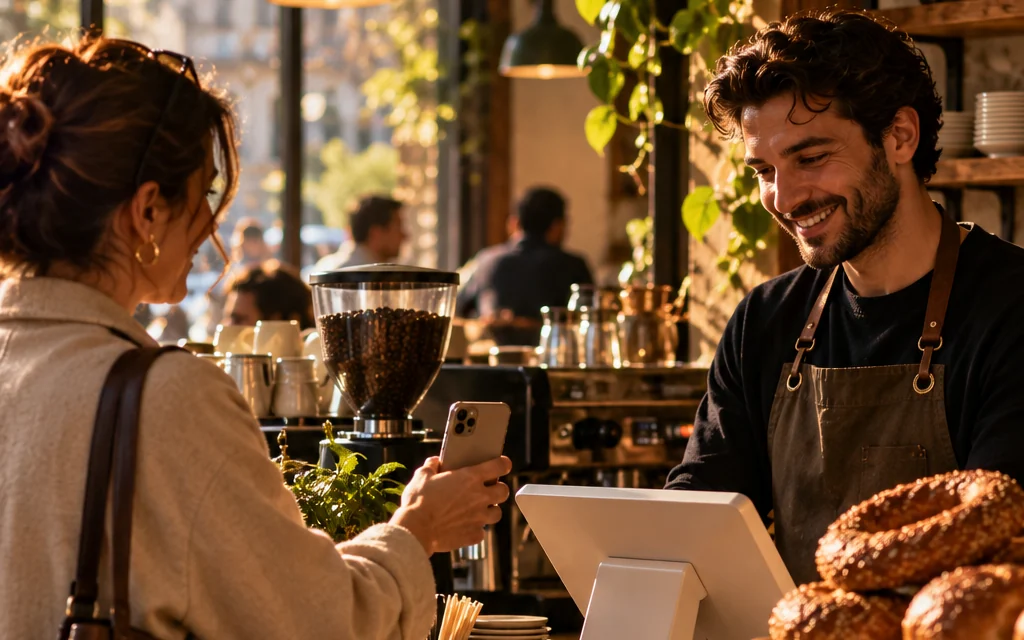
A POS system is the combination of software and hardware that records orders, payments and sales at the point where a business makes a sale. POS stands for “point of sale”. In cafés and restaurants, a POS system brings counter sales, table bills, takeaway orders, kitchen tickets and end-of-day reports together in one place. In this guide we explain, in plain language, what a POS ordering system is, how a POS system for restaurants works, how a POS system differs from a cash register, and what cloud POS means.
What is a POS system?
In everyday language, “POS” is used for three different things, which causes a lot of confusion:
- Card terminal: The device that takes card payments. The money goes through the bank or payment provider.
- Cash register (fiscal device): A device that records sales for tax purposes and prints the receipt; some models can also take card payments.
- POS software: The program a business uses to manage sales, orders, tables, products and reports.
These three don't replace one another; most businesses use them side by side. In this article, when we say “POS system” we mean the third one: the business's sales and ordering software and the hardware connected to it. In restaurants and cafés it is also called restaurant billing software or restaurant management software. For a more detailed definition, see our POS ordering system and restaurant billing software pages.
What is a POS ordering system?
A POS ordering system is a setup where every order lands in the same system, no matter where it comes from. The sale a cashier rings up at the counter, the order a server enters on a tablet at the table, the order a guest places from the QR menu on the table and the takeaway order that comes in by phone all end up in one list. The kitchen sees what to prepare on a ticket or a screen, and the POS knows exactly what each table owes.
In the old way of working, an order is written on paper, carried to the till and called out to the kitchen. Every hand-off is a chance for mistakes: a misheard item, a forgotten extra, a complimentary item that never gets recorded. A POS ordering system removes these hand-offs.
What does a POS system consist of?
Software
The software is the heart of it. Products, prices, options (size, milk type, extras), the floor plan, users and permissions, payment methods and reports are all set up here. With cloud-based software, the menu and reports can also be managed from a web dashboard.
Hardware
- POS computer: Usually a touchscreen computer or a tablet.
- Receipt printer: For bills and customer receipts.
- Kitchen and bar printers: So each order prints at the right station.
- Cash drawer: For cash payments.
- Card terminal and fiscal device: For card payments and, where your country requires it, fiscal receipts.
- Server tablet: For taking orders at the table (optional).
- Customer display: So customers can see their basket and the total (optional).
How does a POS system for restaurants work?
In a restaurant with table service, a typical flow looks like this:
- The table is opened: The cashier or server taps the table on the floor plan and a bill is opened.
- The order is entered: The server enters it on a tablet, the cashier at the POS, or the guest through the QR menu on the table; options and notes are saved with the order.
- It goes to the kitchen: Depending on its category, the order prints or appears on the screen at the right station: drinks to the bar, food to the kitchen.
- The table is managed: Additional orders are added to the same bill; if needed, the table is moved, two tables are merged, and complimentary items or discounts are applied with manager approval.
- The bill is closed: Payment is taken in cash, by card, or split across several methods; the bill can also be split between guests.
- It shows up in reports: The sale appears in reports instantly; at the end of the day you see what sold by product, category, hour and cashier.
In a café the flow is shorter: you tap the product on the quick-sale screen and take the payment. In bakeries and patisseries, counter sales and pre-orders matter most; in delivery, phone orders and courier tracking come first. A good POS system runs all of these service types from the same screen.
The difference between a POS system and a cash register
This is the most commonly confused topic. A cash register or fiscal device records sales for tax purposes and issues the sales receipt. In many countries, tax rules set out how sales must be recorded and what a valid receipt has to contain, and in some cases a certified device or system is required. Some of these devices can also take card payments. The rules differ from country to country.
POS software, on the other hand, is a management tool for the business: it manages tables, orders, the kitchen, staff and reports. A bill or order slip printed by POS software does not automatically count as a fiscal receipt. Which document you need to issue (a fiscal receipt, an invoice or an electronic document) depends on your country and the type of business; check the current requirements with your accountant or local tax authority.
| Topic | POS software | Cash register (fiscal device) | Card terminal |
|---|---|---|---|
| What is it for? | Managing orders, tables, kitchen, staff and reports | Recording sales for tax purposes and issuing receipts | Taking card payments |
| Who sets the rules? | The business and the software provider | Tax rules in your country | The bank and payment provider |
| Output | Bills, kitchen tickets, reports | Fiscal receipt, end-of-day (Z) report | Card slip, bank transaction |
| Does it know the menu and tables? | Yes | Usually not | No |
| Reporting depth | Product, hour, channel, location, staff | Tax totals | Payment totals |
What is a cloud POS system?
A cloud POS system keeps your data not on a single computer in your business but on the provider's servers on the internet. A sale made at the till is written to the cloud instantly, and you can see reports from home, from your phone or from another location.
What a cloud POS system gives you
- Control from anywhere: You can see the day's sales without being on site.
- One menu, every channel: You change a price once, and the POS, QR menu and app update at the same time.
- Easy multi-location management: You manage all locations from one dashboard and compare them side by side in reports.
- Automatic updates: No waiting for installation discs or a technician to get new features.
- Customer data in one place: Loyalty, wallet and campaigns are linked to the same customer record as the sales at the till.
Local POS vs. cloud POS
With a local (installed) POS, the program and data live on a computer in your business; to see reports you usually have to be at that computer, and you or your technician handle backups and updates. With a cloud POS, data is kept on the provider's servers, updates arrive automatically and you can reach your reports from anywhere. Some products combine the two by connecting the program on the till to the cloud. In a business with one till the difference may look small; once a second location, a QR menu or a customer app comes into play, the advantage of the cloud becomes clear.
Questions to ask before choosing a cloud POS
A cloud POS relies on an internet connection. Before choosing one, think about the quality of the connection at your business, and ask the provider how the POS behaves when the internet goes down, where sales are saved, and what happens when the connection comes back. Also find out whether you can export your data (Excel, PDF) and what happens to your data when the contract ends.
What to look for in a POS system for cafés and restaurants
- Are counter, table, delivery and takeaway sales on the same screen?
- Do orders from server tablets and the QR menu land on the same bill?
- Do kitchen tickets print at the right station?
- Are cash, card, house account and split payments supported, including splitting the bill per person?
- Are there per-cashier PINs, permissions and cash counts at opening and closing?
- Can reports be broken down by product, hour, channel and location?
- Are customer loyalty, stamp cards or a digital wallet connected to the POS?
- Are setup, menu import and training included?
Switching to a POS system: step by step
Moving from paper bills or an old till program to a new POS system can be done within a few days if it is well planned. The order could look like this:
- Prepare your menu: Collect products, prices, categories and options (size, extras, milk type) in one list. If you already have it in Excel, the import goes faster.
- Draw your floor plan: Define areas such as the dining room, terrace or garden, and the table numbers.
- Check your hardware: Ask the provider whether your POS computer, receipt printer and kitchen printers are compatible with the new software.
- Set up users and permissions: Create a separate user for each cashier and server; decide who approves voids, complimentary items and discounts.
- Train your team: During a quiet hour, practise opening tables, entering orders, moving tables and closing bills together with test orders.
- Watch the first week: Compare end-of-day reports with your old method, and fix any missing products or wrong prices right away.
The most time-consuming part of the switch is entering the menu correctly. So ask right at the start whether setup and menu import are included in the provider's service.
If you are looking for a POS system for your café or restaurant, take a look at sipnik POS: on a touchscreen till running on Windows 10 and 11, quick sales, table bills, delivery and takeaway share the same screen; orders from server tablets and the QR menu on the table land on the same bill, and orders from delivery platforms arrive in the same list. Fiscal receipt requirements differ by country, so ask us how sipnik POS fits the setup required where you operate. When a customer's QR code is scanned, the payment is deducted from their wallet. Our recommended route is sipnik POS, but sipnik can also connect to your existing POS software via API. Sip Your Brand!
Frequently asked questions
What does POS system mean?
POS stands for “point of sale”. A POS system is the software and hardware that records orders, payments and sales where the sale takes place. In cafés and restaurants it manages table, counter and takeaway sales, kitchen tickets and reports.
What is a POS ordering system?
It is a setup where orders from the till, server tablets, the QR menu on the table and the phone all land in one system. The order goes straight to the kitchen, the table's bill stays up to date at the till, and the sale shows up in reports instantly.
Is a POS system the same as a cash register?
No. A cash register (fiscal device) records sales for tax purposes and issues the receipt, according to the rules of your country. POS software manages orders, tables, the kitchen and reports. They meet different needs; check with your accountant which documents you are required to issue.
What is a cloud POS system and what are the benefits?
It is a POS system where data is kept on the provider's servers. You can see reports from anywhere, update the menu from one place, manage all locations from one dashboard, and updates arrive automatically.
What hardware does a restaurant POS system need?
A touchscreen POS computer and a receipt printer are usually enough. Depending on your needs, you can add kitchen and bar printers, a cash drawer, server tablets and a customer display; for card payments you need a card terminal, and where your country requires it, a fiscal device for fiscal receipts.
Does a small café need a POS system?
Even in a small café with one till, POS software shows which product sells, at what time and how much; it also connects loyalty tools such as stamp cards and customer balances to the till. Collecting this information with paper bills is very hard.
Skip setting all this up piece by piece.
Wallet, loyalty, subscriptions and order-ahead come ready for your brand.
Sip Your Brand!